LindenGuard App
Lindenwood University is launching a new public safety app, LindenGuard, that provides a selection of tools to enhance public safety on campus for students, faculty, and staff.
Overview
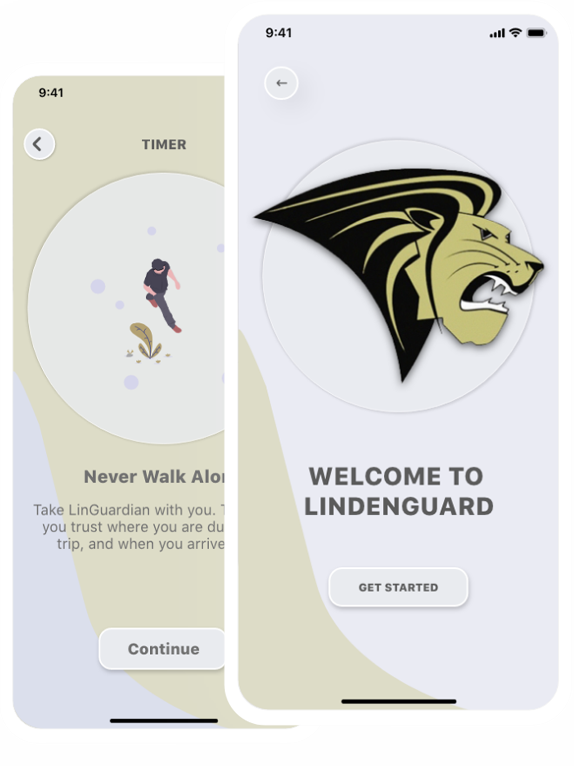
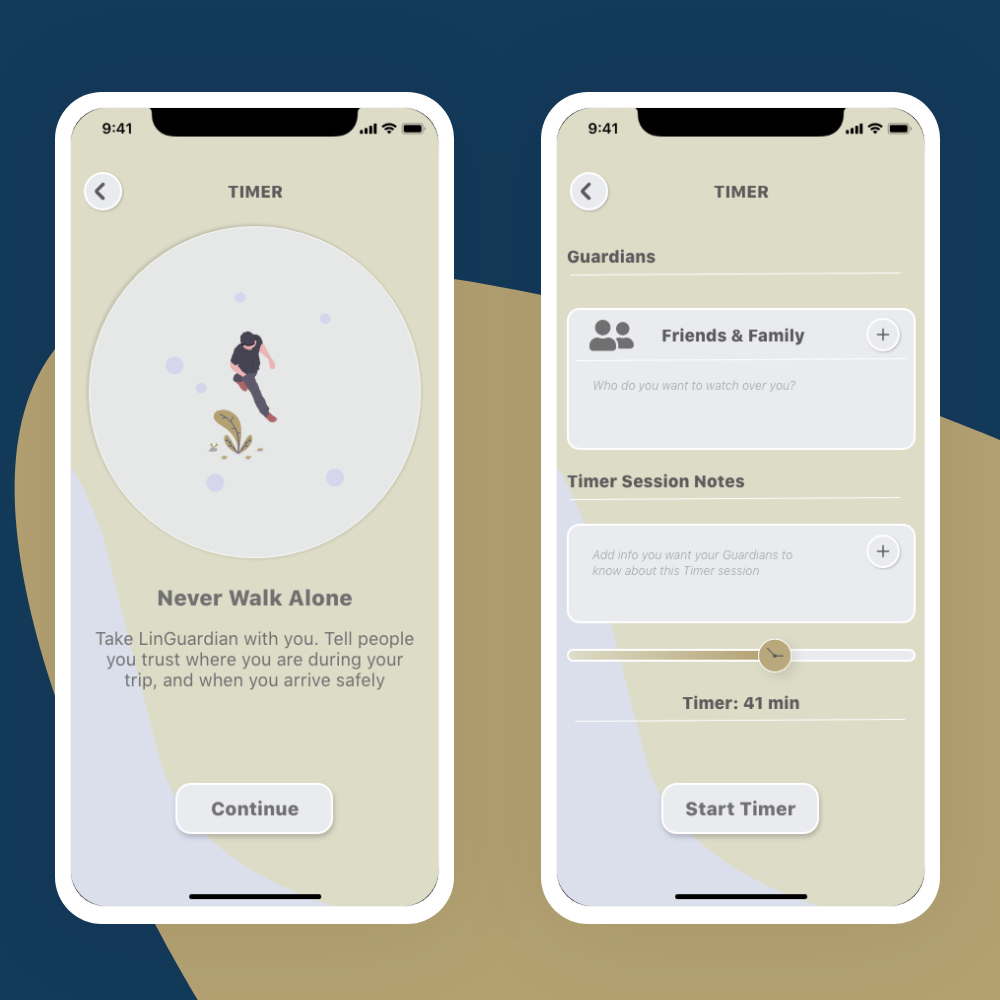
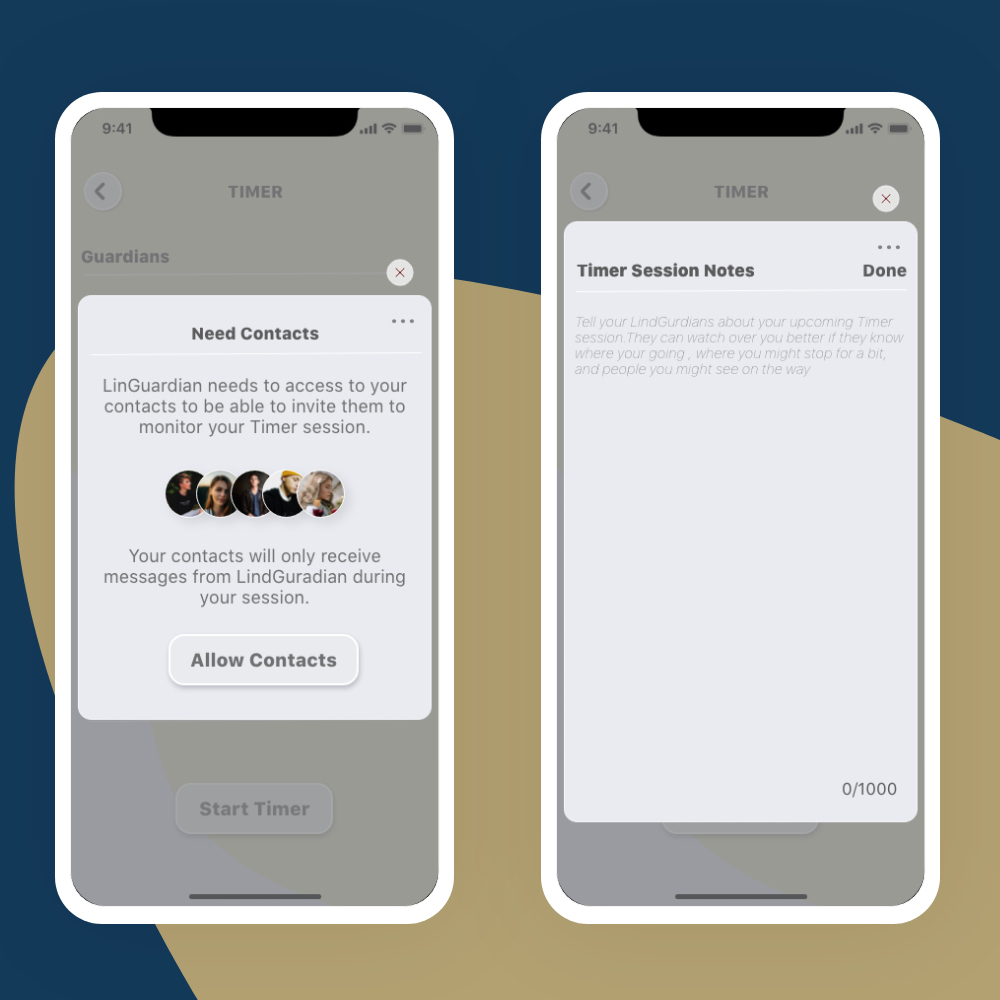
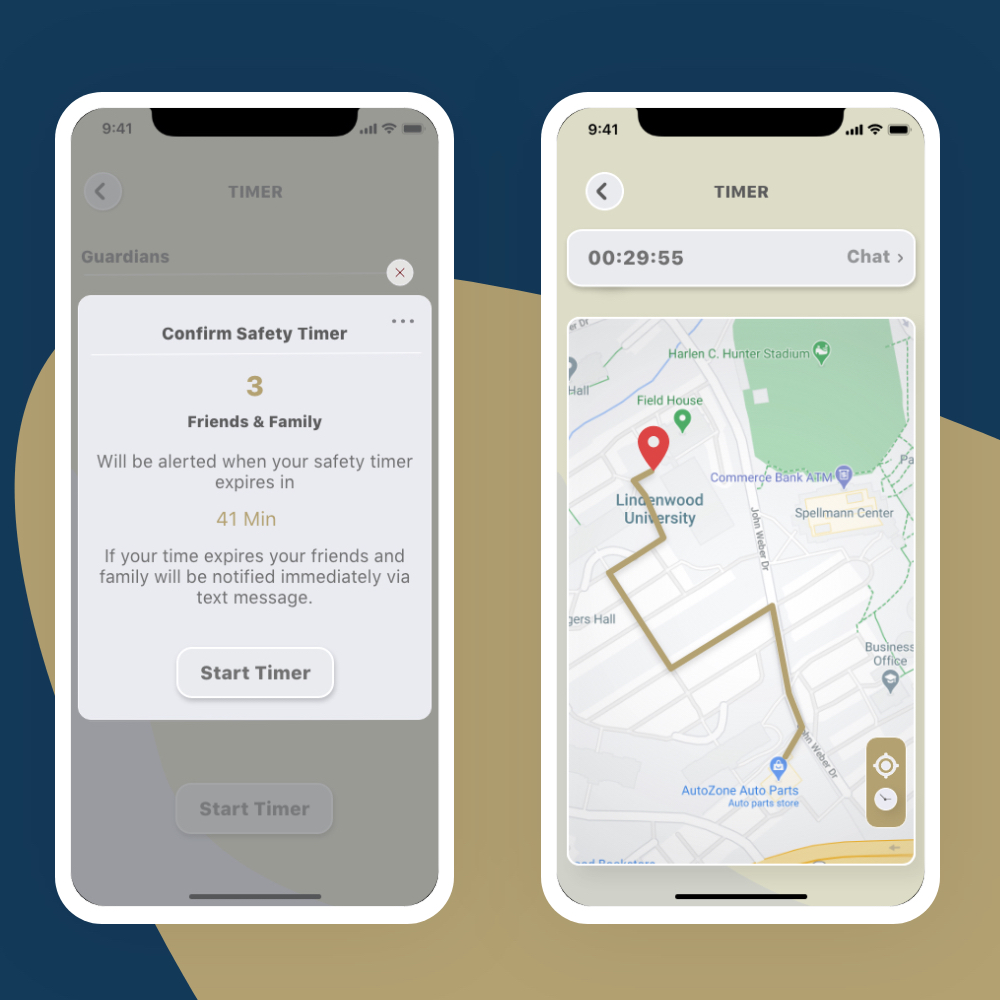
The app, LindenGuard, is for students on the St. Charles and Belleville campuses. It affords users the ability to call Campus Public Safety & Security or 911 with the touch of a button. Another feature of the app allows users to report a tip to Public Safety in real time through a chat session, including pictures if need be. Lindenwood states the app is like a blue light safety kiosk that users carry with them. The app also includes a safety timer feature to use if, for instance, a user needs to walk alone on campus after a late-night study session. The user would set the timer based on the expected length of the walk, and if it runs out before the user stops it, a set of “guardians” selected by the user before the session will receive a notification, including the user’s location.
Role
As a designer, I conducted extensice research into the University student community in the form of survey, observation, and interviews. As a resusult of the surveys and interviews we defined the our main features which were maily focused on creating userflows, wireframes, hiegh-fidelity Ui and an interactive prototype for usabilty tesiting.
Time Frame
7 weeks in total
• Research, create user personas, use case diagrams and mockup (3 week)
• Actual design; Implement ideas into the UI Kit, prototypes and Test (4 weeks)
The Challenge
Students face a variety of challenges when they go to campus alone. Students and faculties need to feel that they are not alone, and they are very secure. Also, they need to get a chance to improve their social interactions and smart
ideas to reduce from various types of stress caused by loneliness in the campus.
The Solutions
It was a meticulous decision to interview the students, faculties and campus guards for designing a solution of campus safety. Even though the Lindenwood university has enough security methods and systems, they don’t have a system to locate a student or faculty in the campus instantly. Lindenwood guards propped up with the idea of creating a safety alarm which can locate a student or faculty and also contact guards the moment when they face a security problem. Creating a severe weather alert and emergency call options were also a fierce decision into LindenGurard App.
Design Process
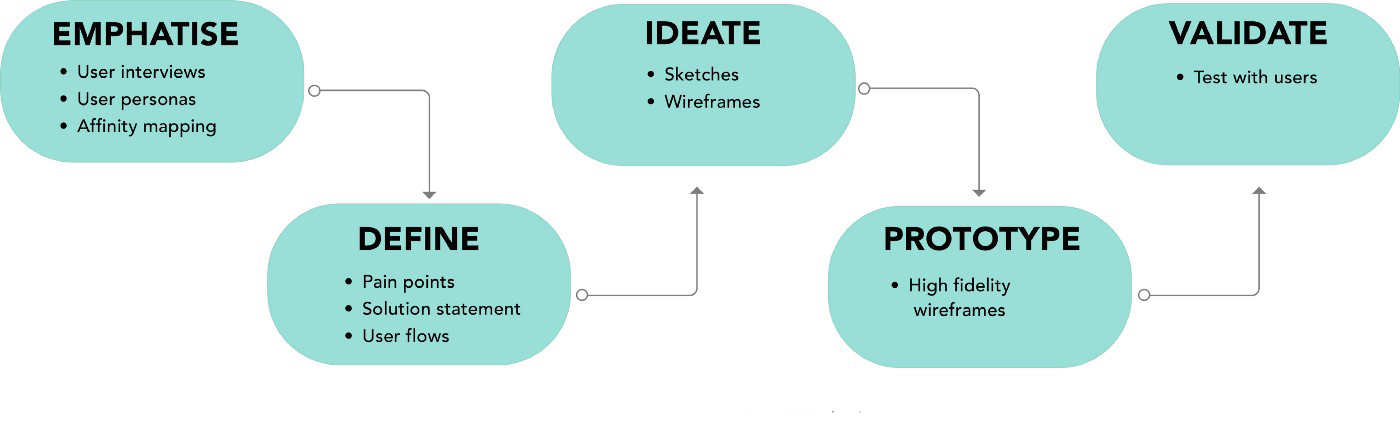
As this project remain a personal project and my first user experience design project I thought important to create a good UX strategy:
Research Methodes
The Survey
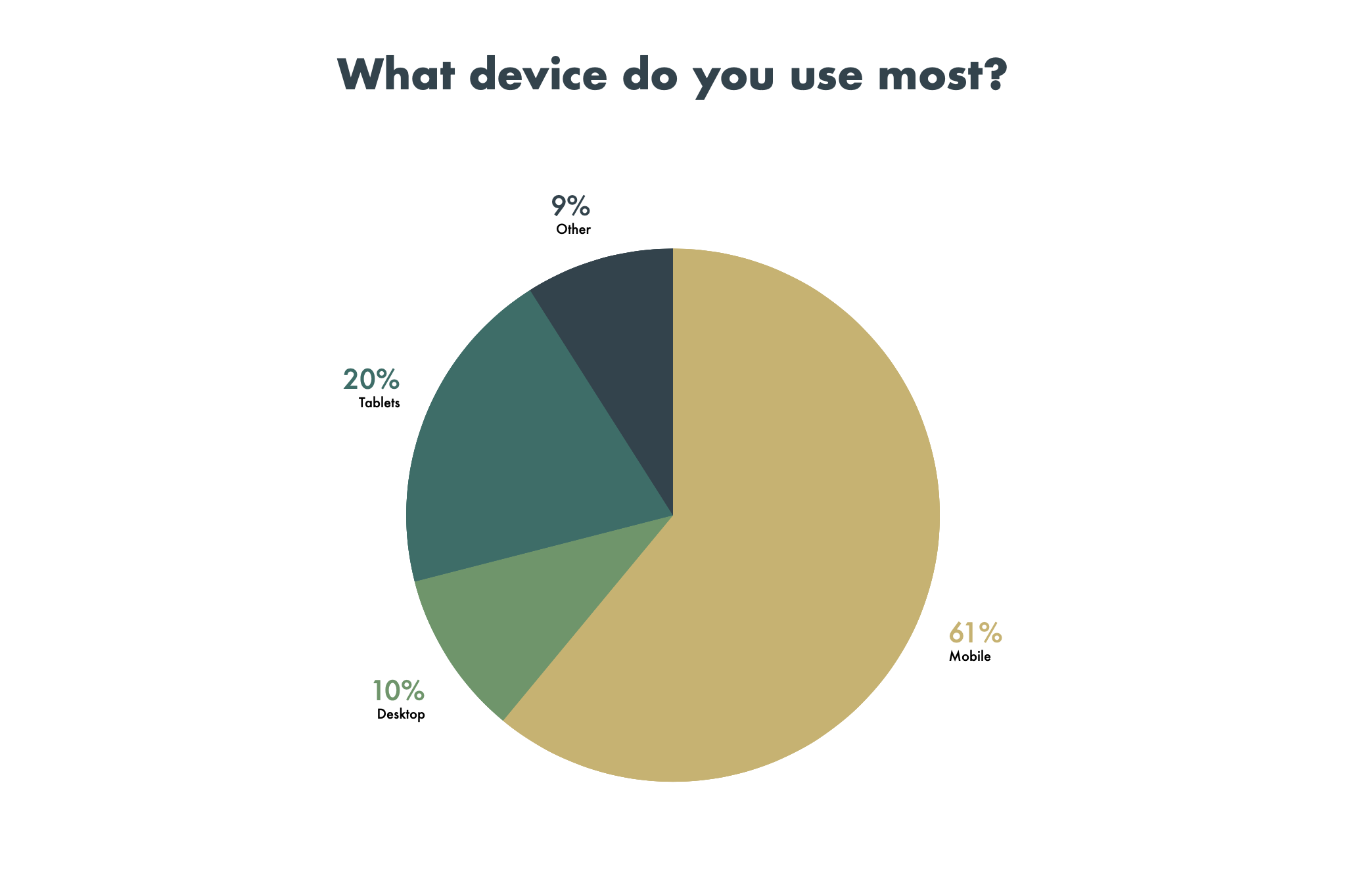
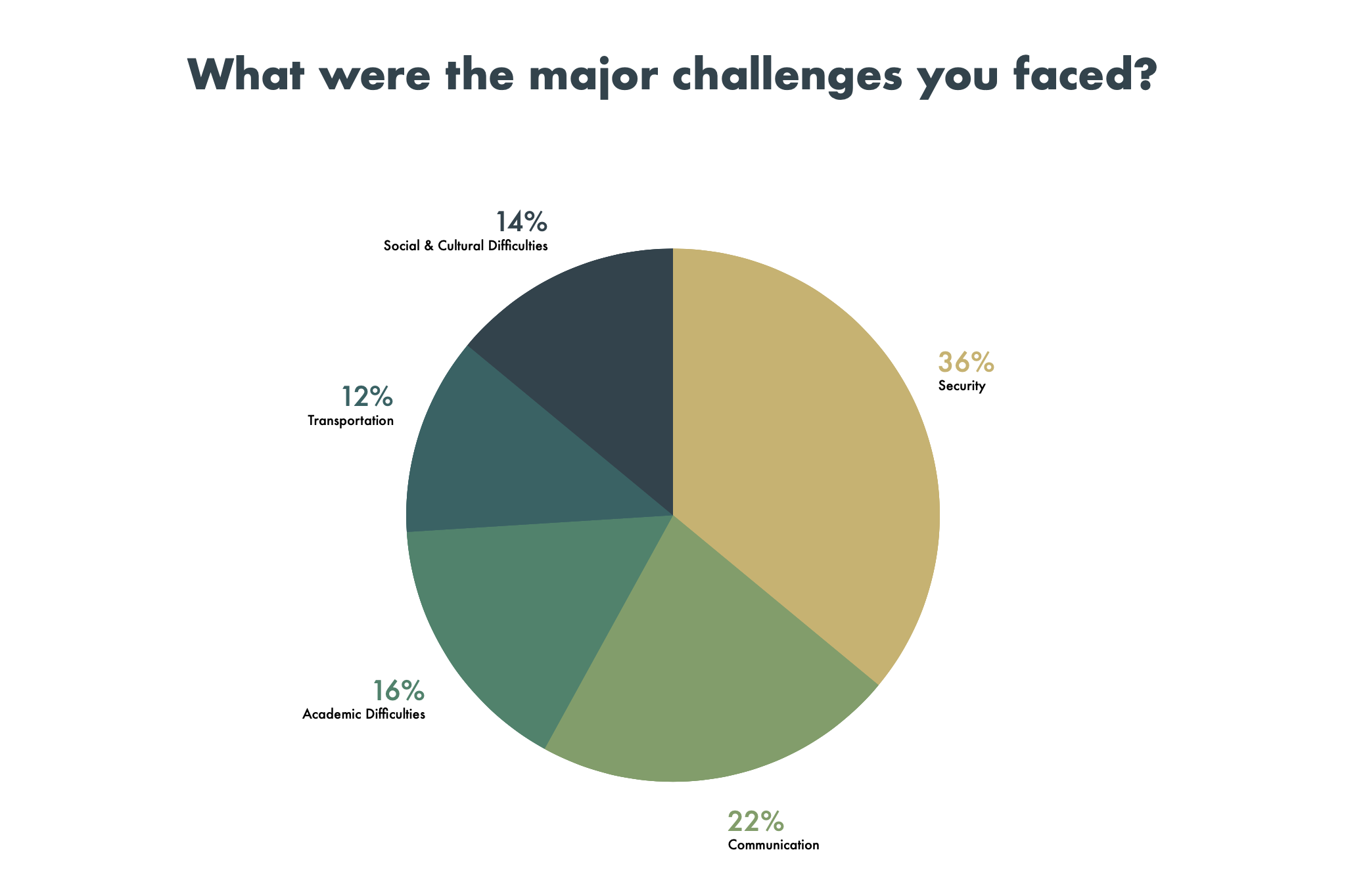
We had divided the survey in mainly 5 sections. General information, experinces, Campus safety, cultural differecess, technology and attitude. When asked what were the major problems they faced, 32% respondents cited about the campus safety while 16% pointed to academic. This data helped us in taking a lot of informed decisions.
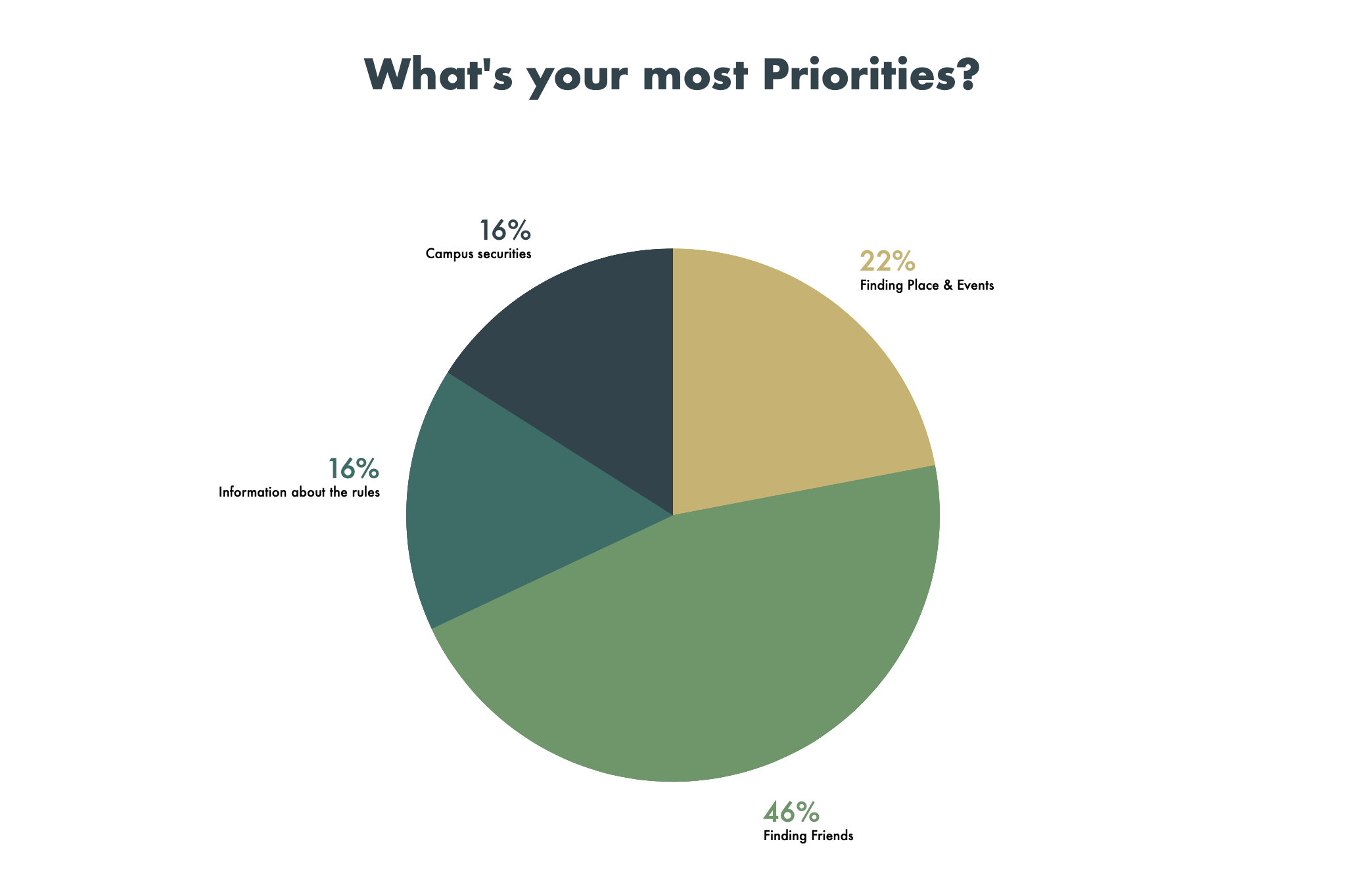
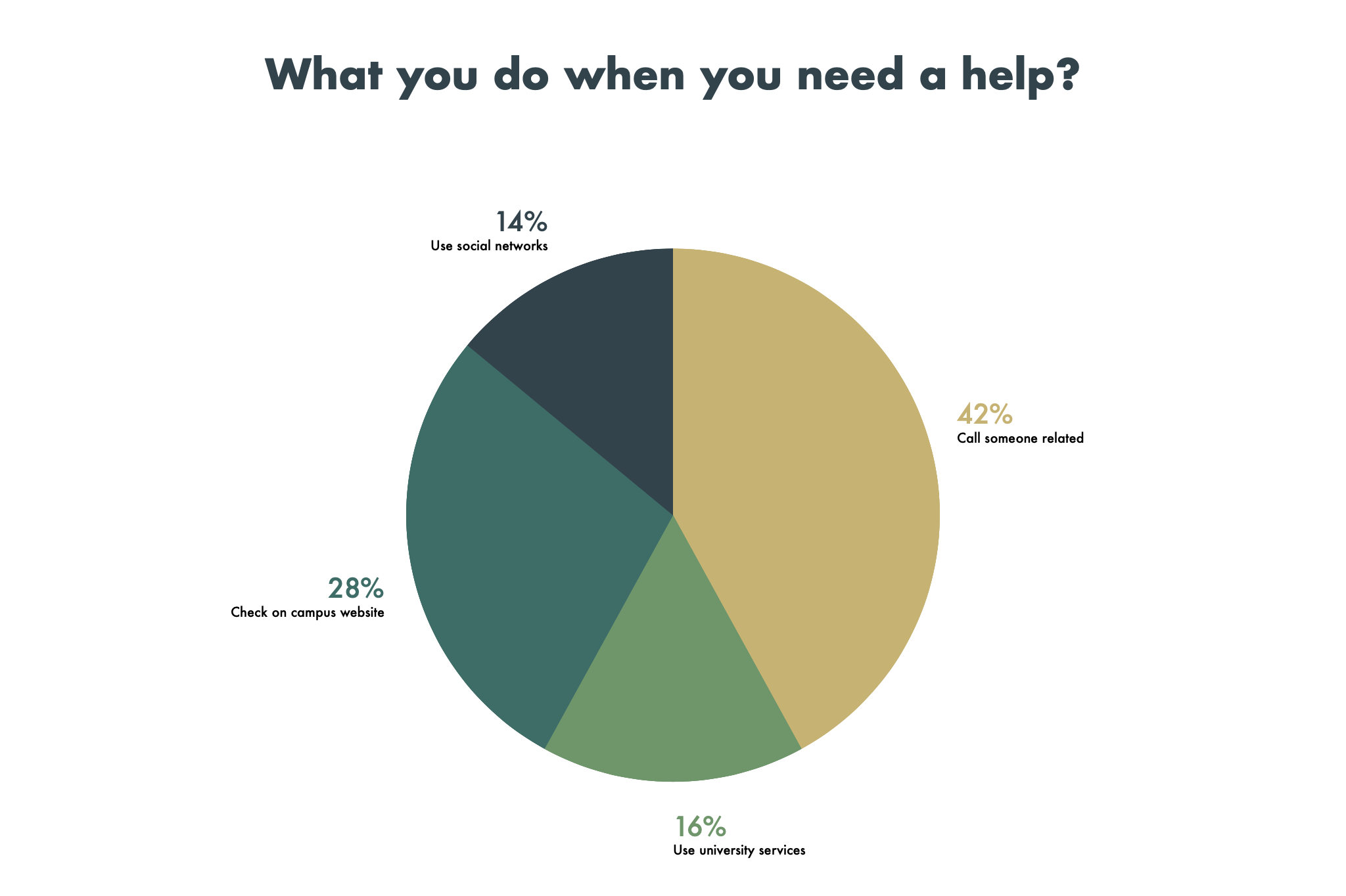
Interviews
To start the process I interviewed some coworkers, classmates, friends, and family members which were are all students. Interviewing them allowed me to notice some important patterns concerning the research and disposal of books after their utilization at the end of each university session. These patterns gave me the information I needed to proceed to the next phase of the UX research.
Research Insights
Framing the problems
We brought together out individual reasearch data and created board or high level themes into which the major challenges faced by the students fell under. The major themes were:-

General Livings
Getting accomodation, bank accounts, mobile connection, transportation, insurances, credit cards, driving license etc.

Security Reasons
Getting touch with Gurads, Walk alone, Reduce violence, emergency call, Student health systems, driving license etc.
Weather Alerts
Notify on moble when wether get severe, Safety measures, Campus weather alerting, emergency contact facilities etc.

Social
Cultural Defferences
making friends, going out for events, understanding local culture & slang, restaurants, food, festivals etc.
Persona
Understanding the user
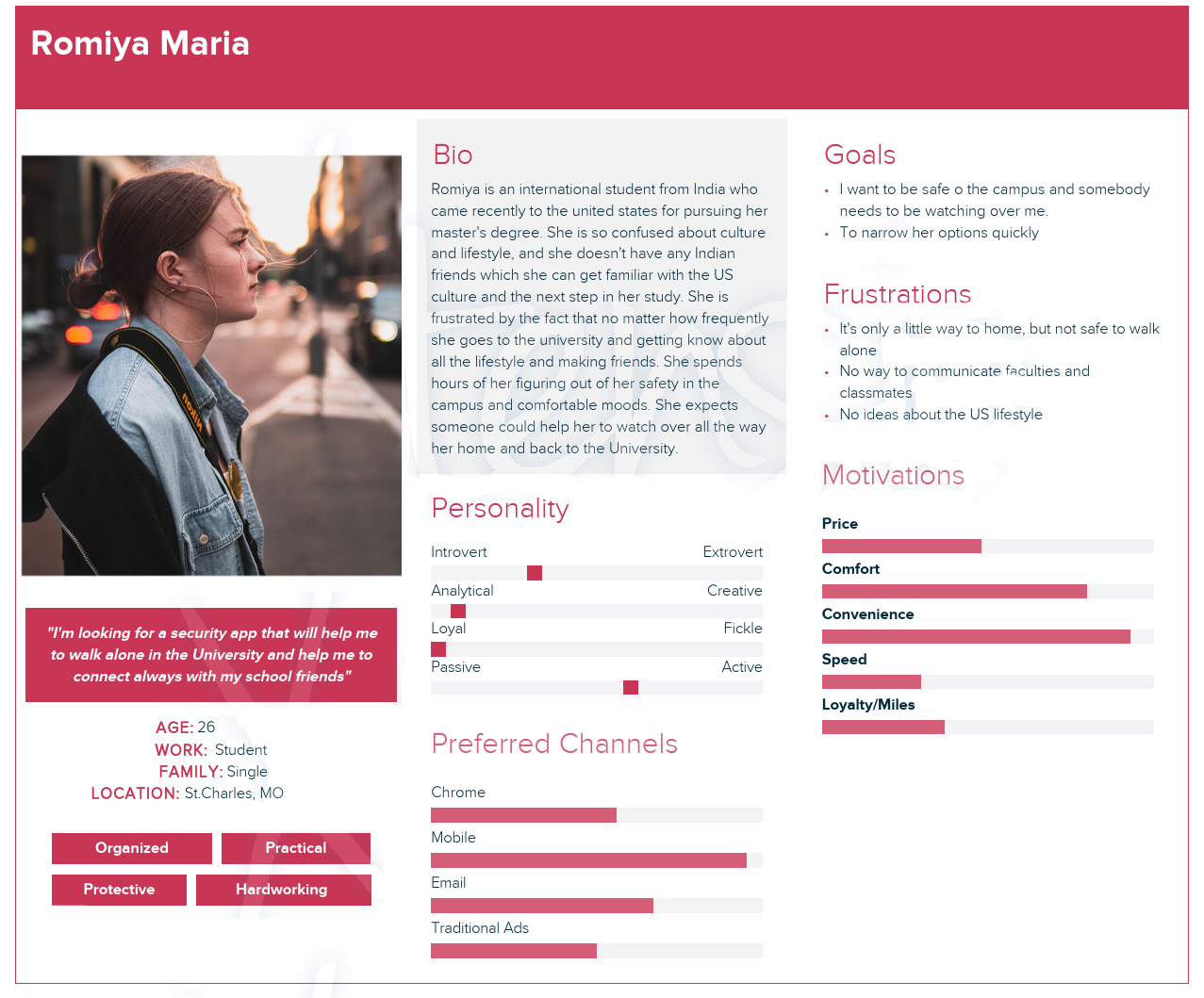
The analysis of servey and the Interviews helped us to gather different insights and typical patterns from the user's answers. The research methodes helped very much us to understand the user and so that we created an end user for this project. The purpose of the persona was to reaching out the Solutions. Focusing on a paritcular user helps to keep the user's needs in mind and not get distracted whenever an idea for an additional feature or demand pops up.
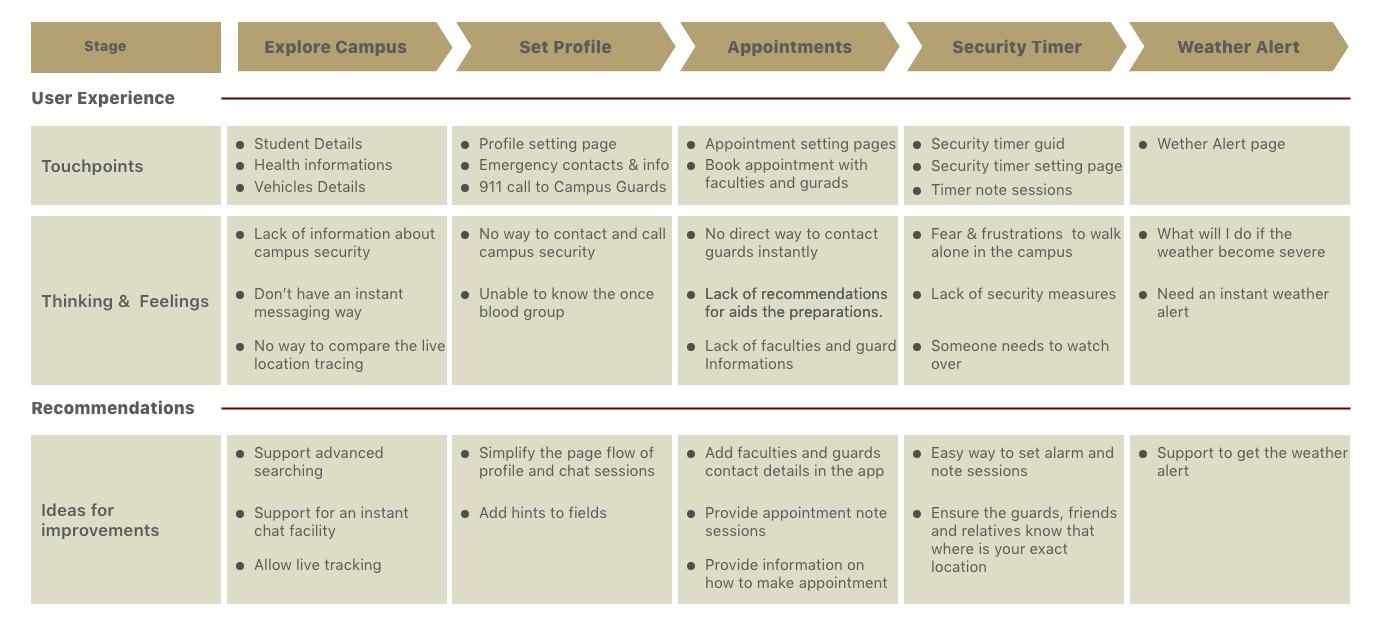
User Journey
Next step was to create a user journey. We just analysed user emotions and empathies and considerd how the end user whish to do things in a smartway. The process helped us identify oppertunites and ideas to enhance the user experience of the simplify app.
Story boarding
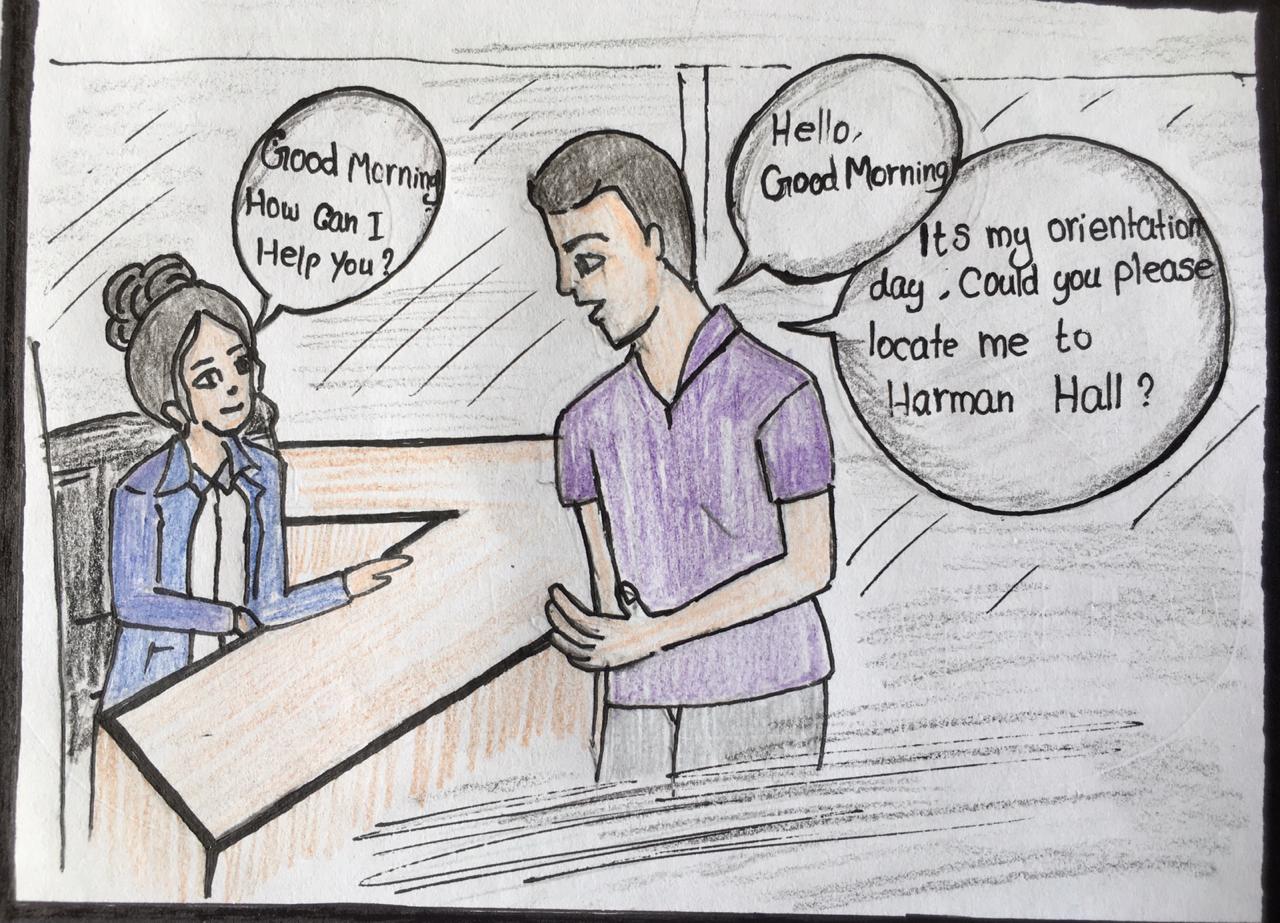
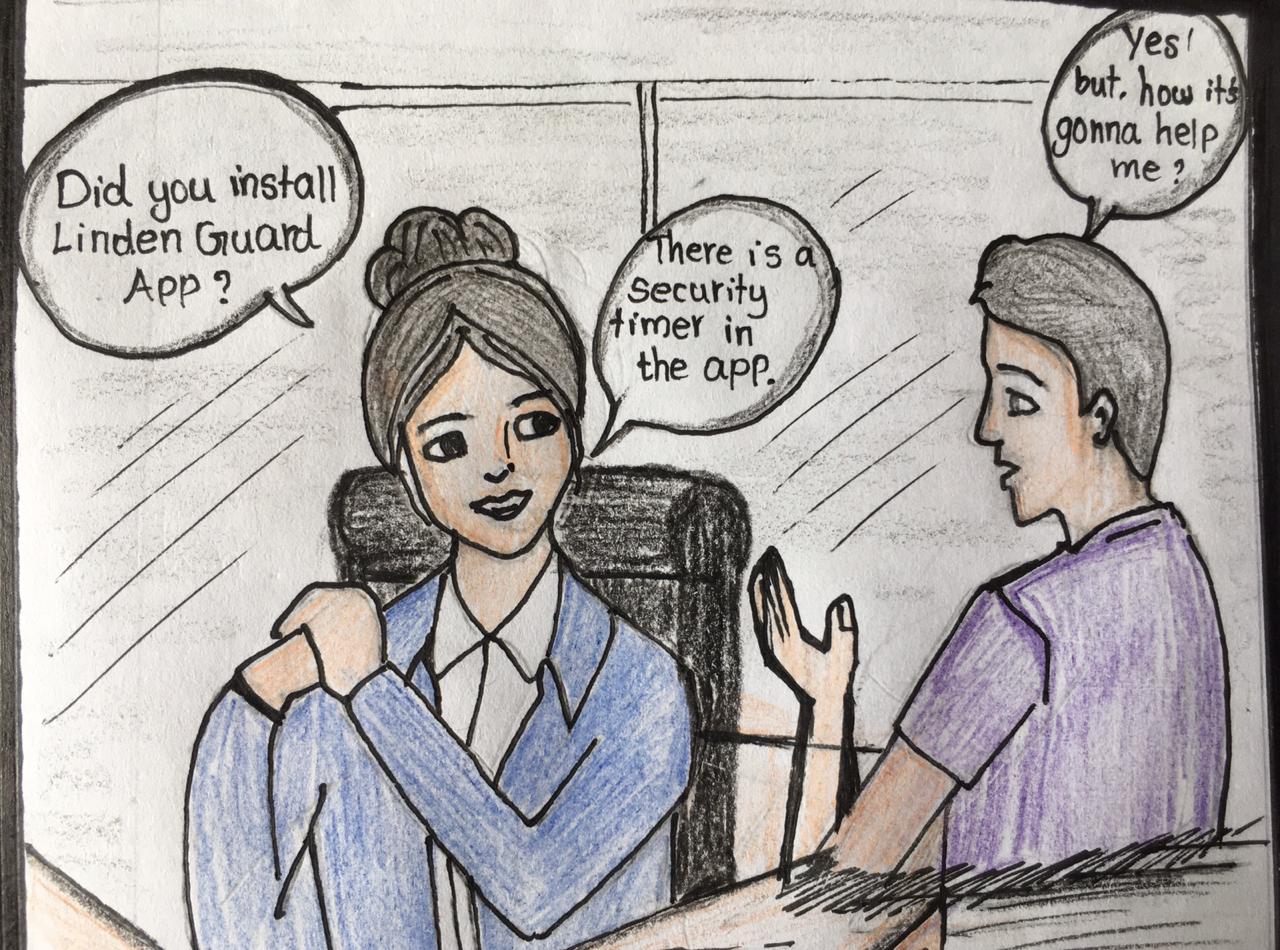
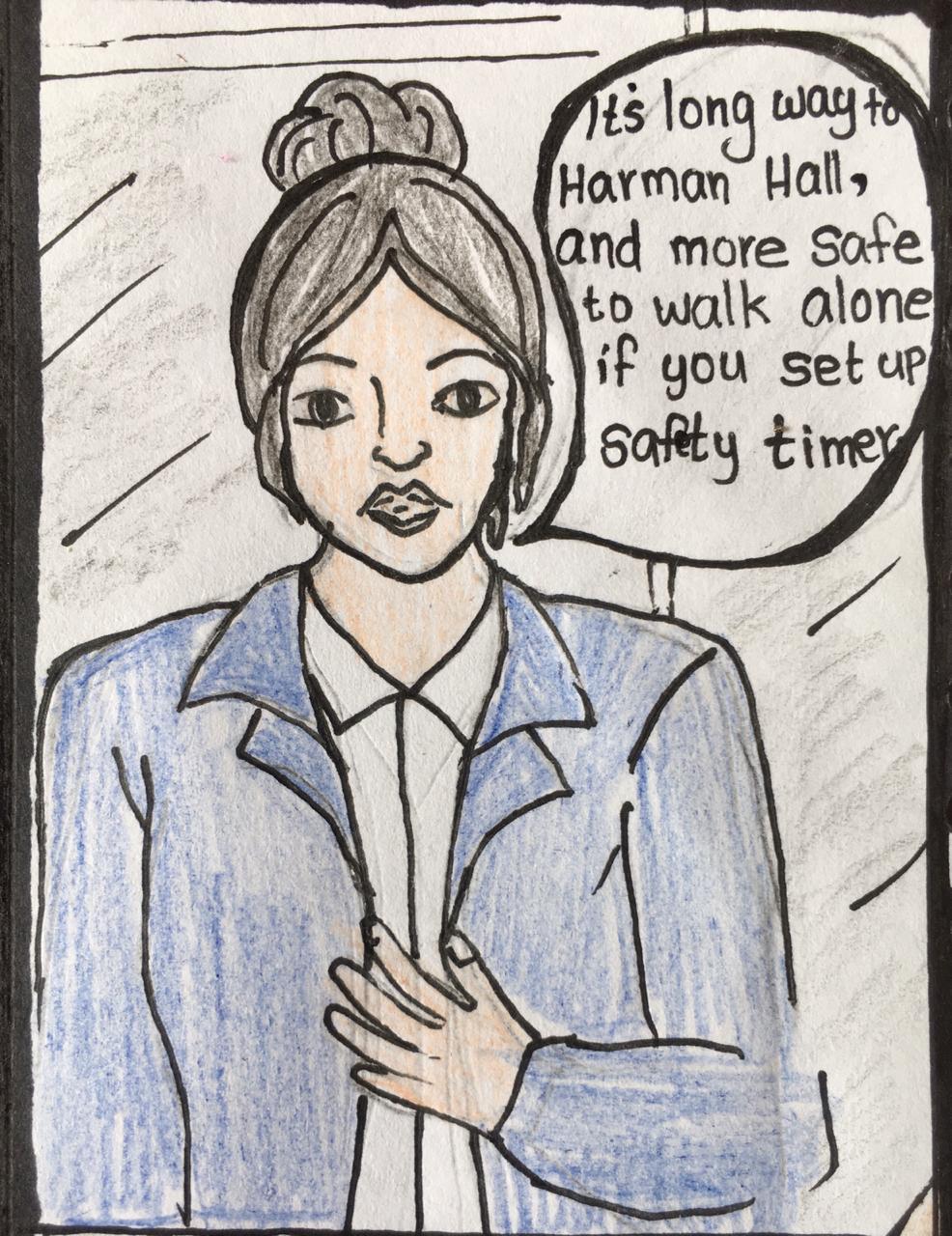
Identifying different scenarios
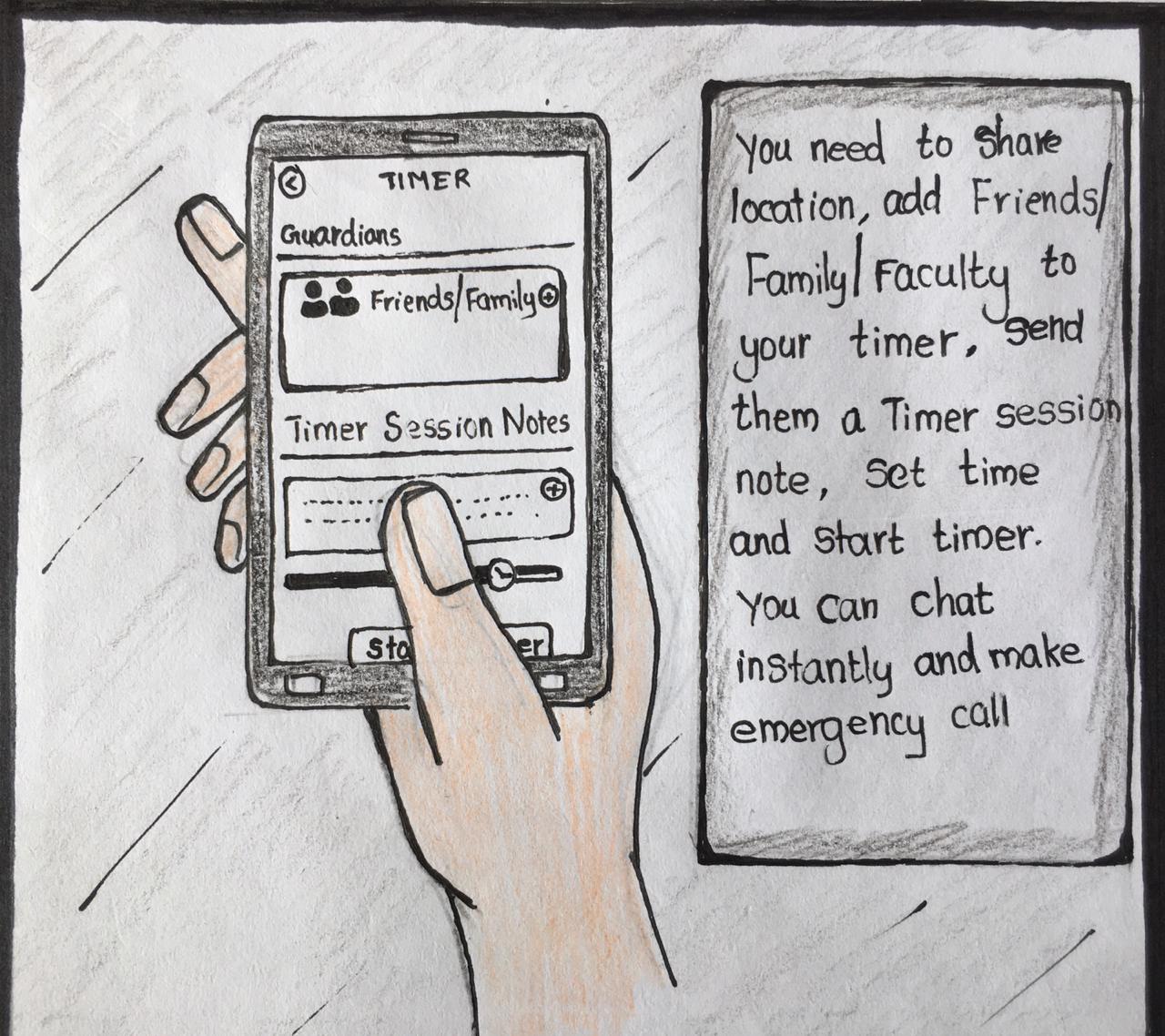
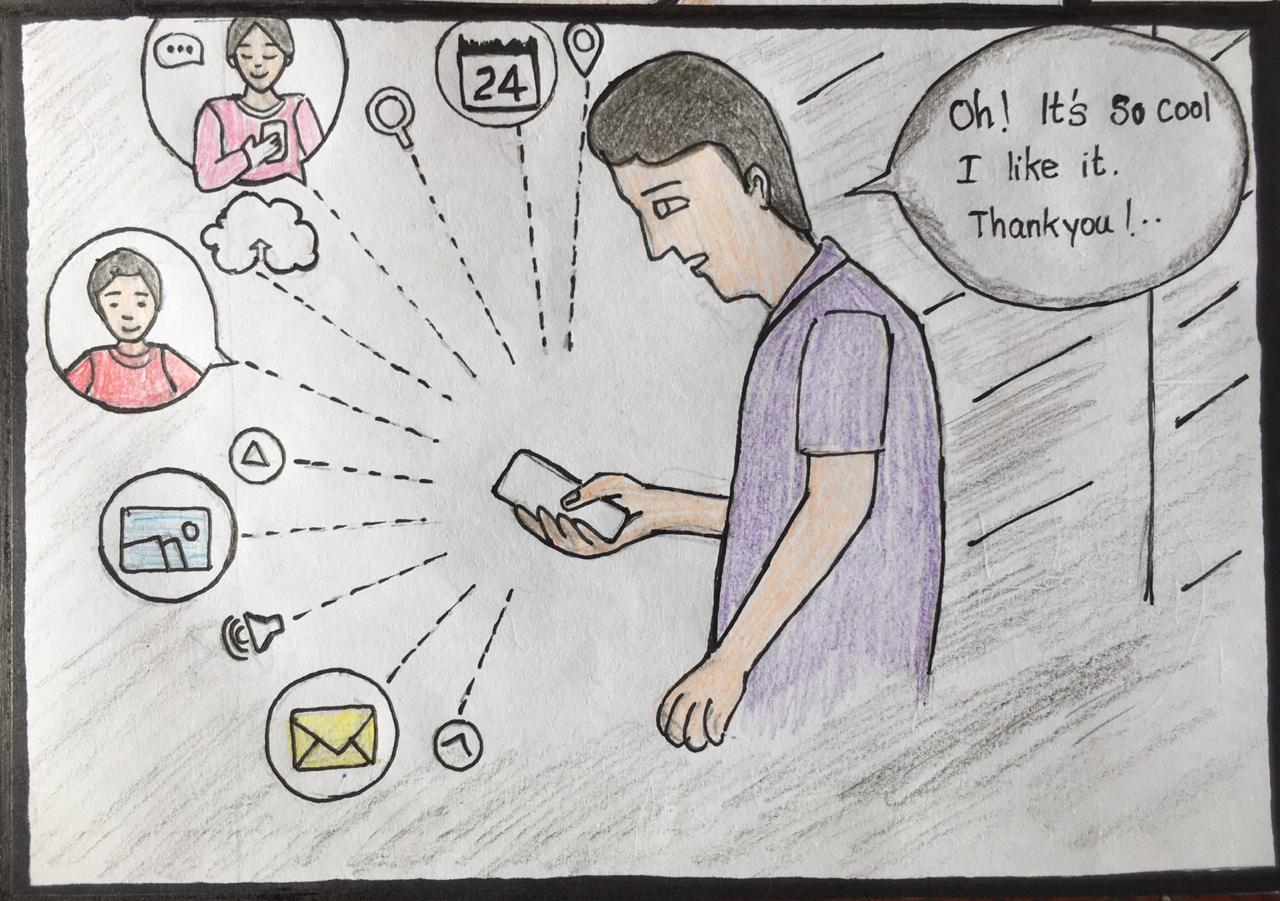
The goal was to take the ideas we've generated in the brainstorming sessions and sketch an actual use case and user scenario on how a user would move through this part of the story. Finally after the storyboards we were able to decide which functionality suits most for out scope and serves best to the users.
Flow Diagram
Mapping & organizing information
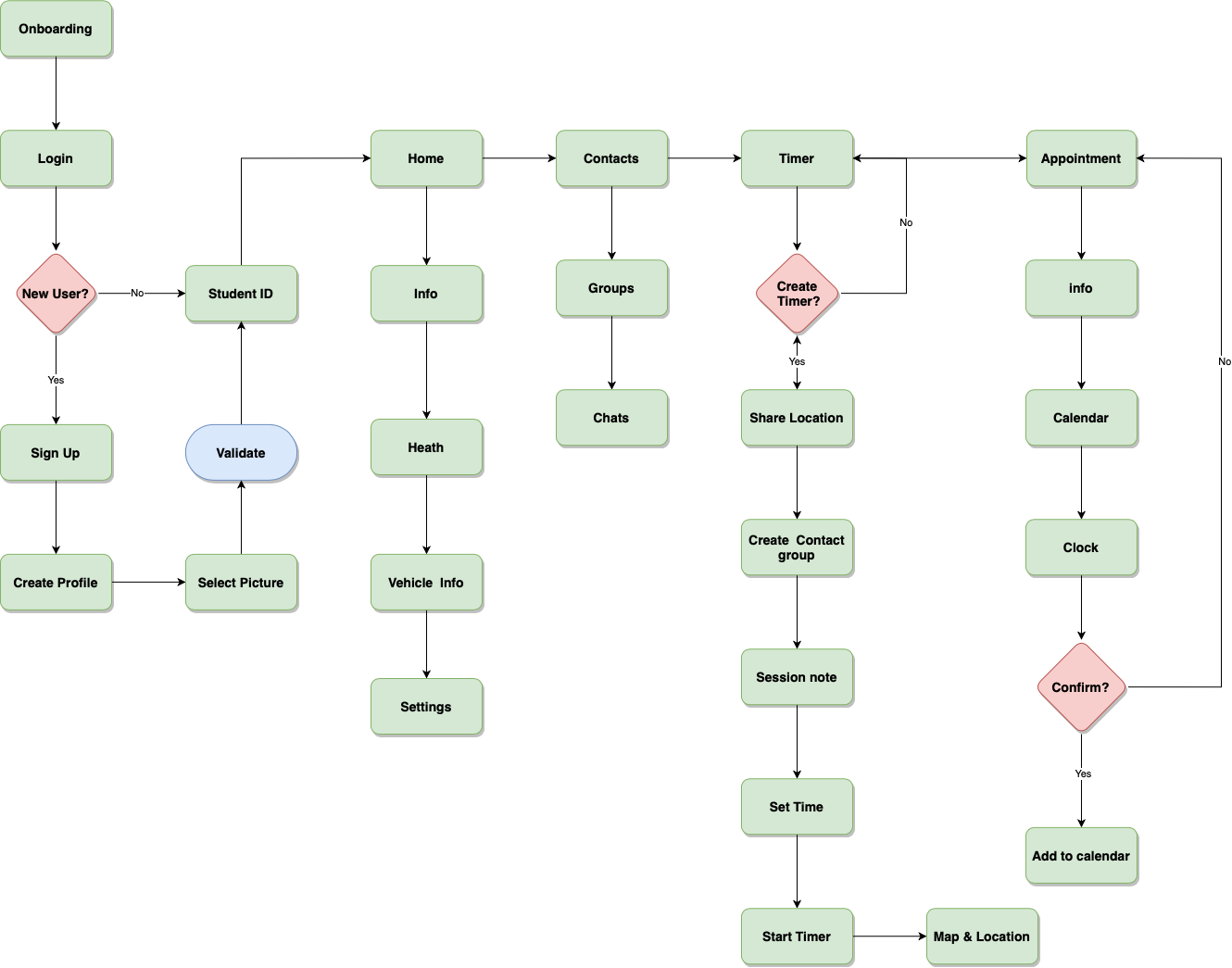
Designing for the user experience began from sketching out a typical user journey based on the accomplishment of specific tasks within the app. Once the user journey had been established, the team began to unpack the design flow for general and specific use cases.
Wireframing
Low-Fidelity Prototyping
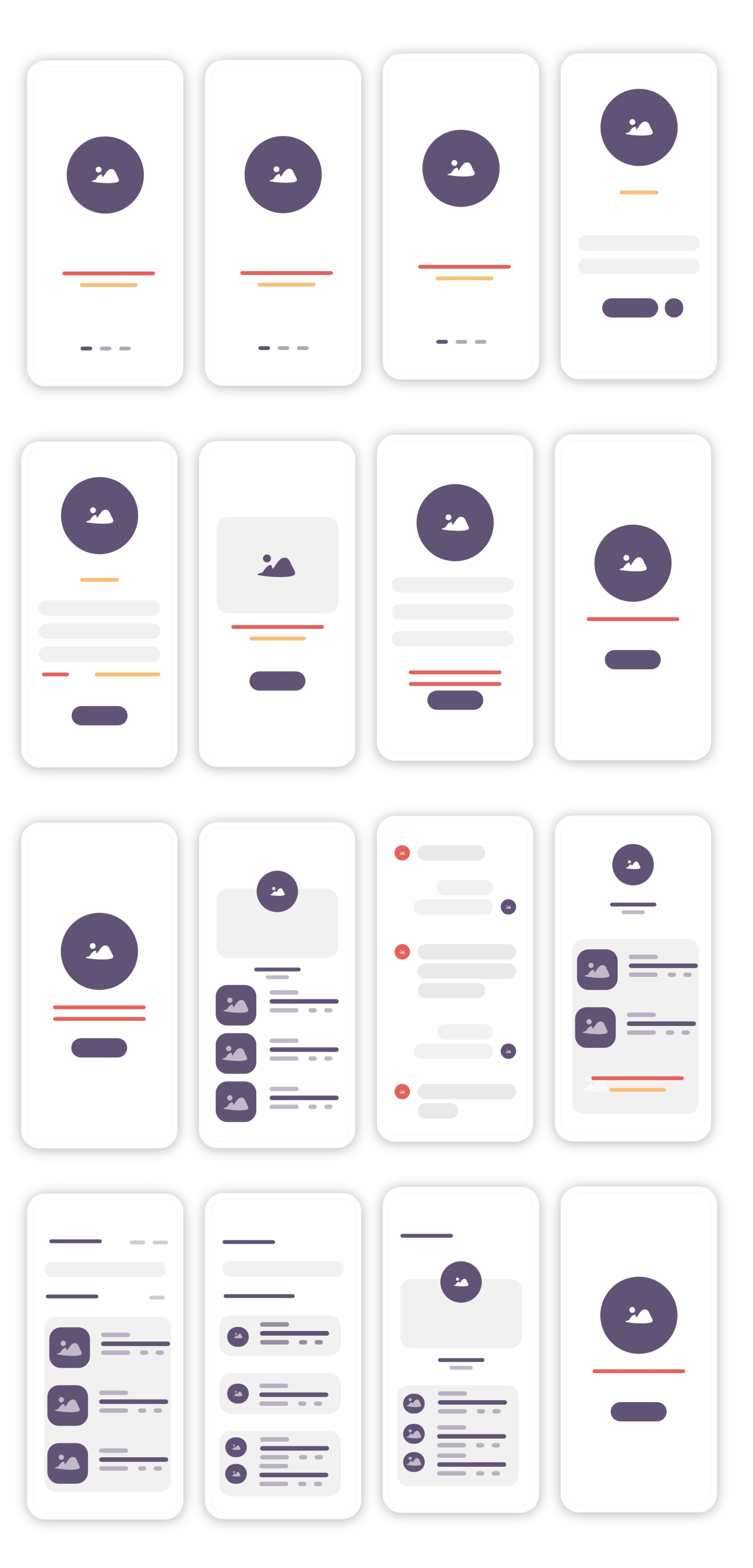
Based on the main features and task flow of our platform, we created initial sketches and wireframes of our prototype with the following user flows: User onboardings, group creation and tracking facilities. We used Adobe XD as the tool for low-fedility prototyping the app.
AN Fashion App
High Fidelity Design
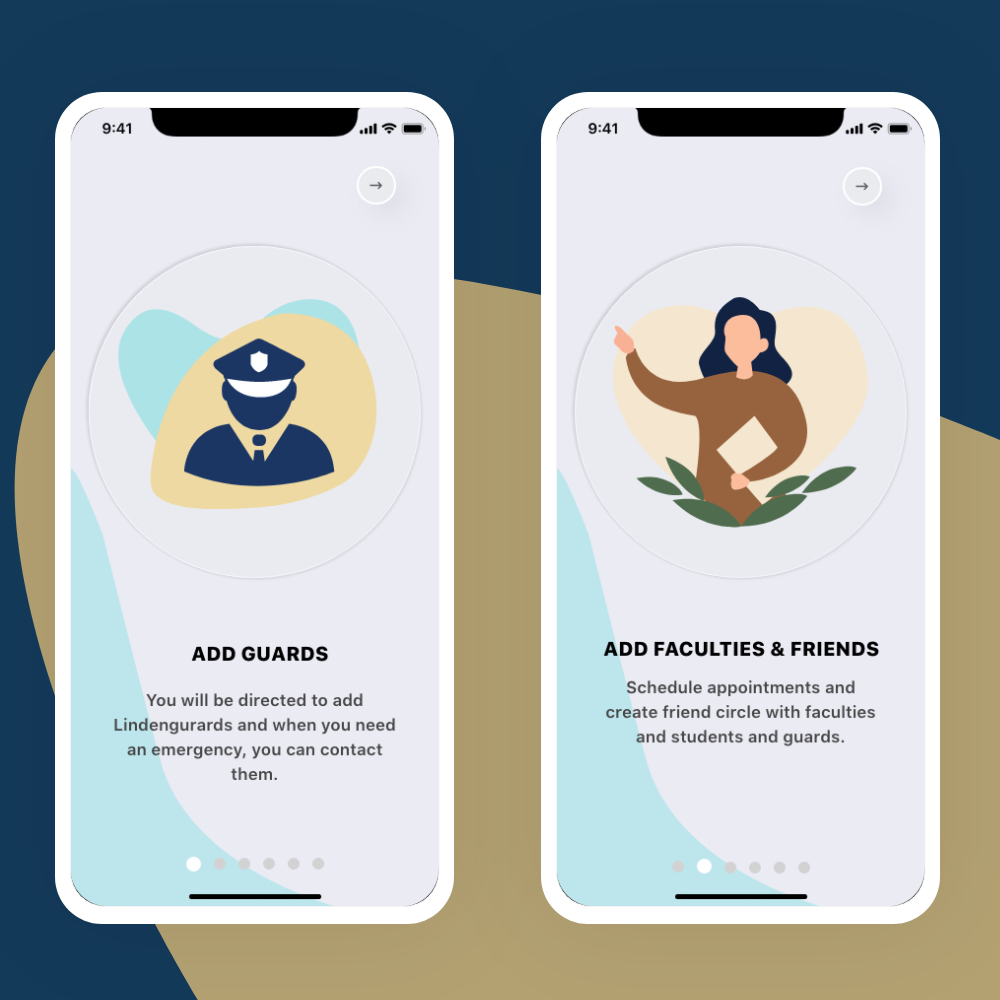
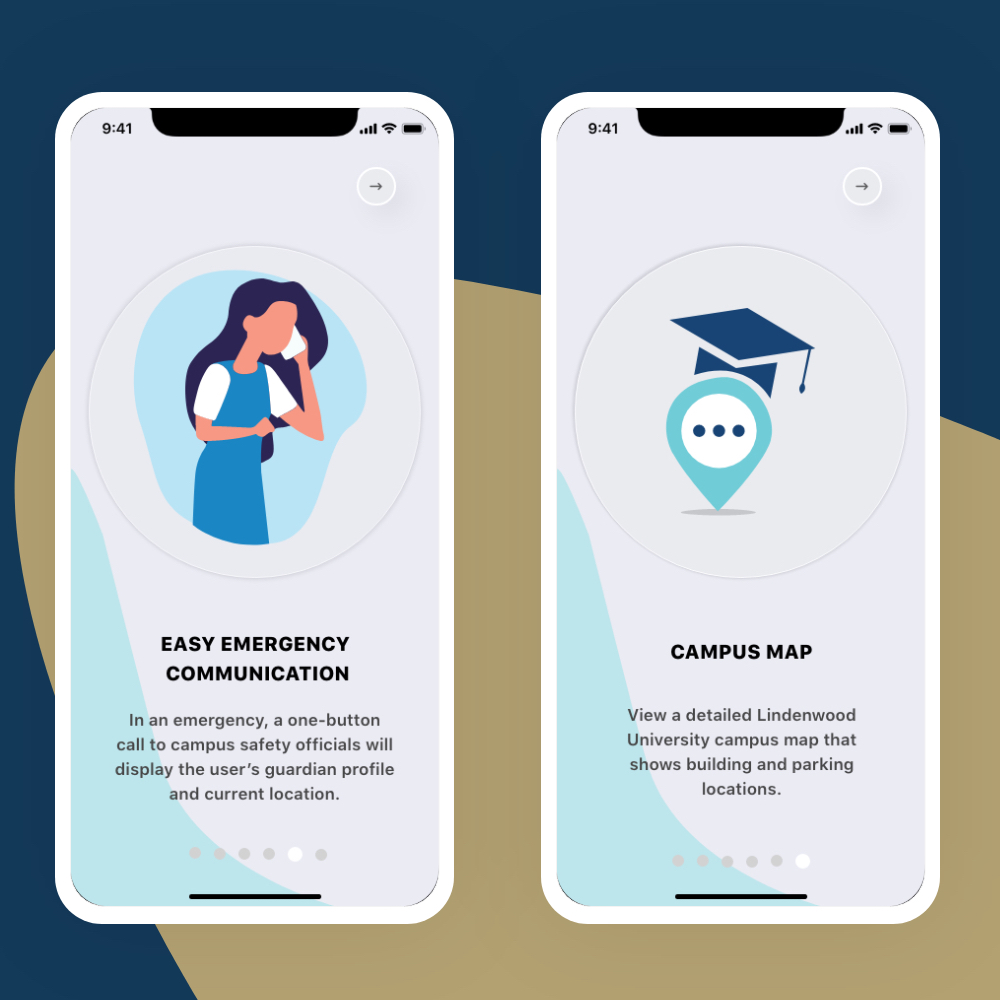
1. Onboardings and Welcome: Onboardings have designed to understand what would be in the app and how to get rid the confusions at the earliest phase of user. It explains to add all campus security officers, faculties, and your friends into your contact list and you may be able call or text in the emergency time. Also the onboarding let user know that how the weather alert and timer works.


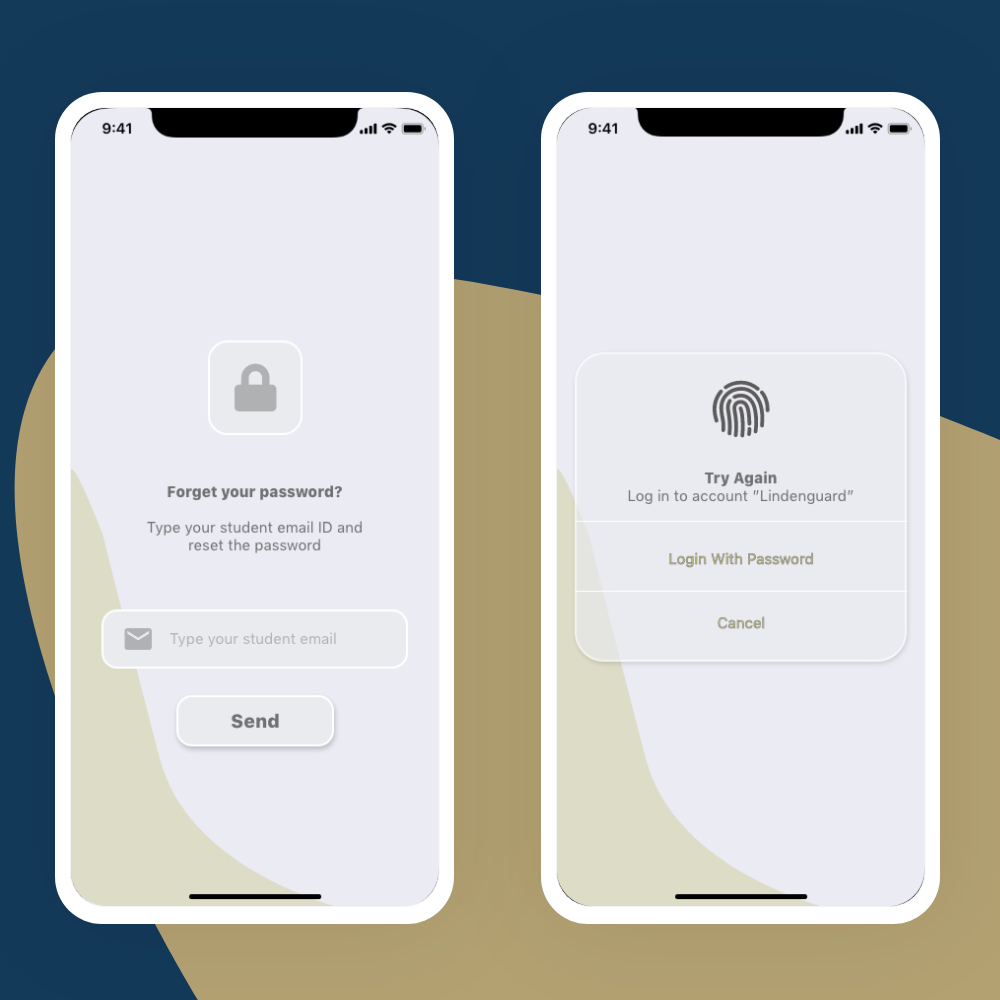
2. Logins and Sign Ups: The login and sign up have given as far as few details as possible. The login is interesting in the sense of added different methods for inputting information such as slide scales.

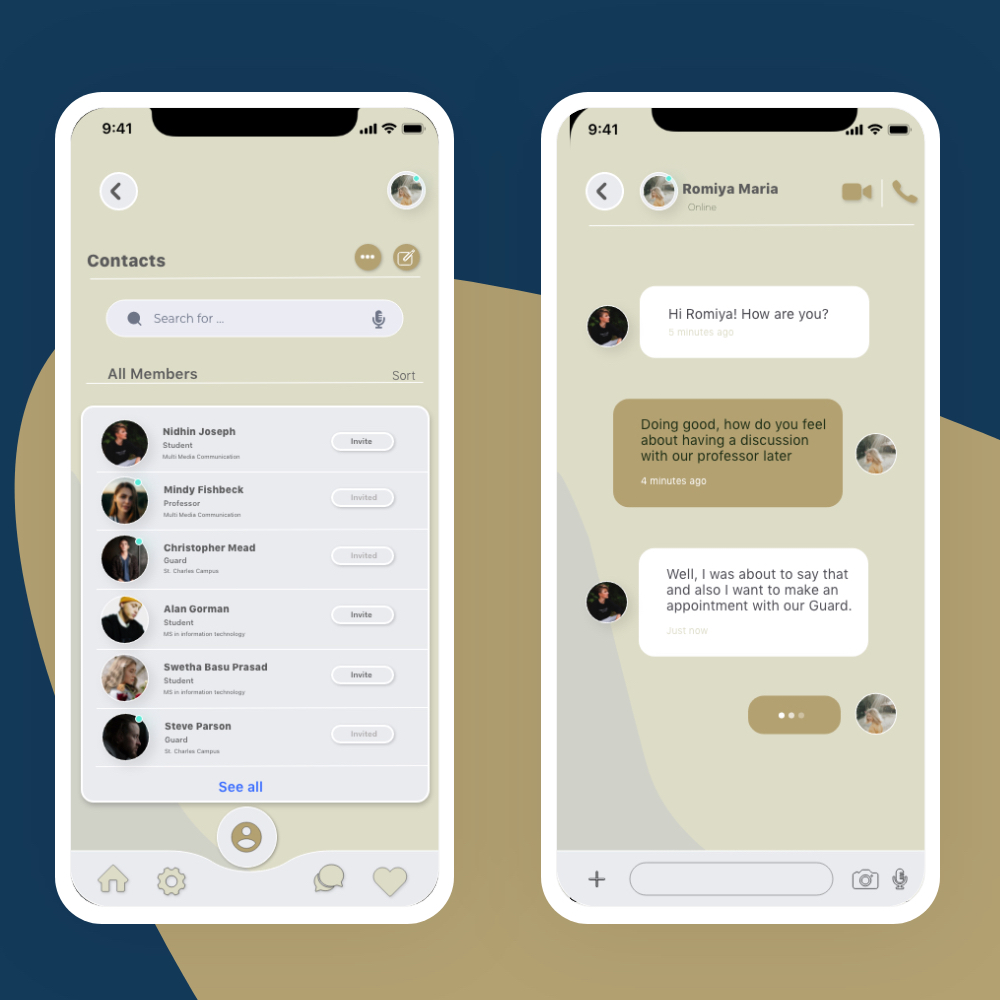
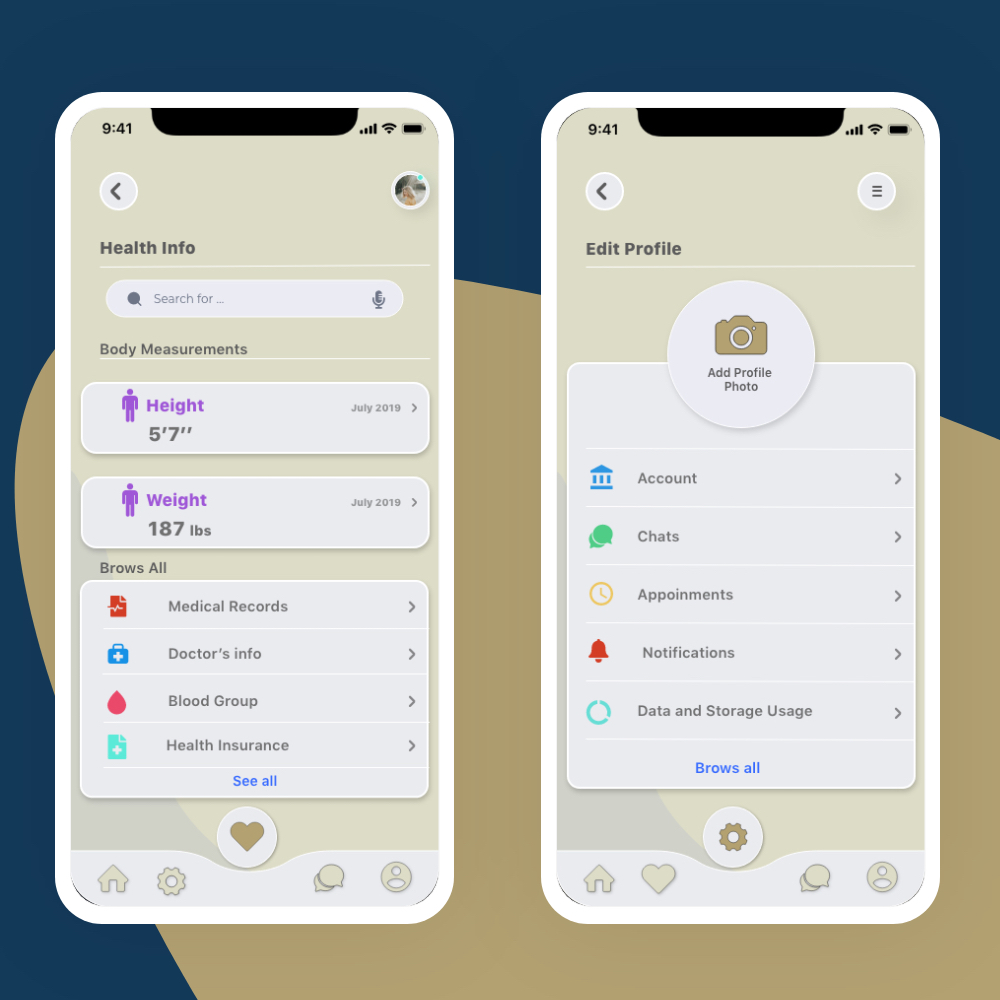
3. Profile Creation and Chats: Users can add their name, campus address, medical notes and other pertinent information for campus safety in case of emergency. By adding roommates, friends, and family to their network, users can feel safer when walking alone, on or off campus. Message guardians directly through the app.

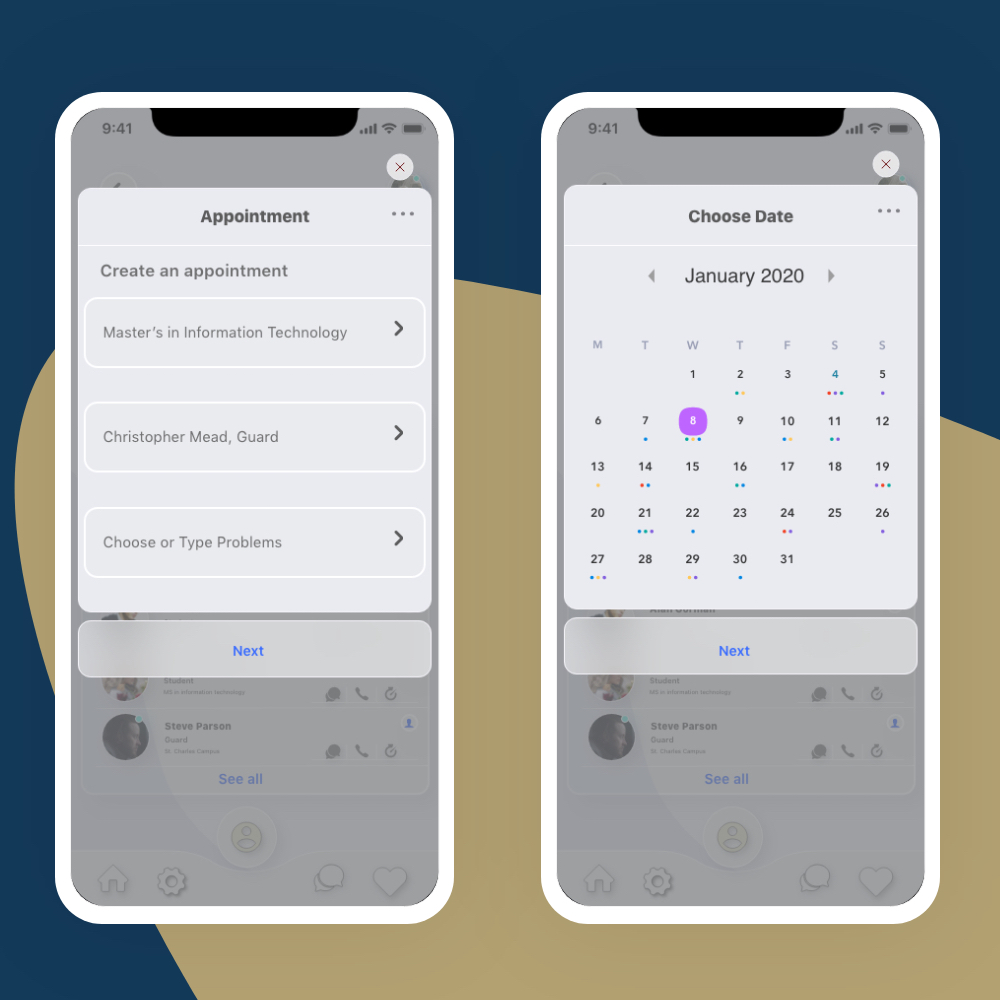
4. Creating Appointments: Creating appointments feature provide students let their faculites know something to discuss with them. User can provie their informations and the reason why they want to talk with facultiles or campus gurard. Once they finshed with their filling detilas, they can choose the date and time before creating appoinment. After the creation of appointment the user can save the appoint to their calender to the phone, so that they will notified when the date and time on the high time.

5. Safety Timer: Once you register and create a user profile, you may set a Safety Timer by pressing the yellow “Safety Timer” icon on the home screen. From this screen, you can set the amount of time you believe it will take to reach your destination, and you can also add “guardians” to your timer session so that they can be notified if your safety timer expires. Upon your safe arrival, simply deactivate the timer from your phone. If you do not deactivate the timer before it expires, your selected guardians will be notified. The menu tab contains instructions on how to use Guardian.
Conclusion
Reflection & learning
We conducted user testing & cognitive walkthroughs to find out usability issues in the interface of the app. Most of the users found the application user friendly and could easily navigate between the screens. They faced some trouble in understanding the Voice and Chat UI together but after getting acquainted with the functions after the first time they could interact effectively. There were some problems in Login & interest/task selection which we can improved by adding tutorials and tooltips in the onboarding process.
What are the next steps?
1. Add Interactive campus map, to navigate the users to the classrooms or other facilities
2. Prototype more AI functionality that can help the students like a talking virtual friend
3. Add Safety Feature - alerting
to few emergency contacts during emergency situations